Microsoft Planner
Custom fields in Microsoft Planner: limit, types and how to reuse them

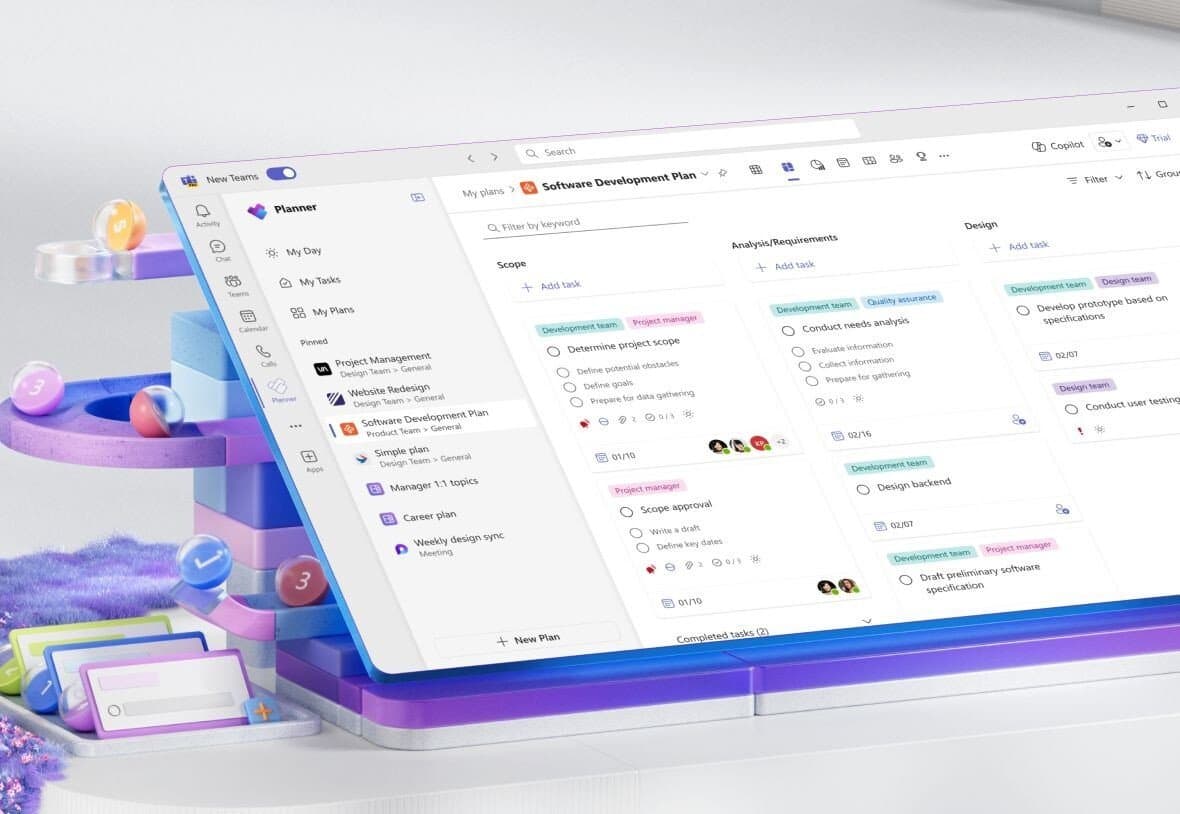
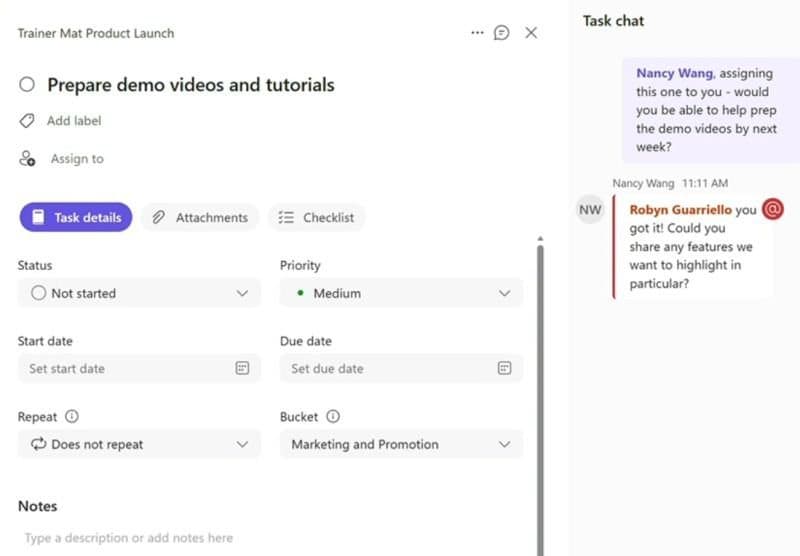
Microsoft Planner lets you create custom fields to record, in each project, the information the team needs to track. With them, plans are standardized, reports are easier to build and new projects start faster.
What custom fields are
They are extra attributes created in the project to store data such as "Business priority", "Stakeholder", "Complexity" or "Approval date". They make it possible to use Planner in more structured management scenarios.
Limit per project
Each project accepts up to 10 custom fields. The limit keeps the screen simple for the people who update tasks.
Available types
- Text
- Date
- Number
- Choice (list)
- Yes/No
Do the fields carry over to other projects?
No. Fields belong to the project where they were created and do not appear automatically in new plans.
How to reuse fields in new projects
Planner does not replicate fields on its own, but there is a simple way:
- Create a template project with all the fields the team uses.
- Copy that project whenever you start a new one. The copy takes the custom fields with it.
That way every team works with the same fields and nobody has to set everything up again.
Why use custom fields
- They standardize project information.
- They make filtering and analysis easier.
- They avoid rework when creating plans.
- They help the PMO maintain governance.
See how ProjectSA does it: Consulting
Frequently asked questions
How many custom fields does a Planner project accept?
Up to 10 fields per project.
Which field types does Planner offer?
Text, Date, Number, Choice (list) and Yes/No.
Can fields be reused in other projects?
Not automatically. The way to do it is to create a template project with the fields and copy it when starting a new project.